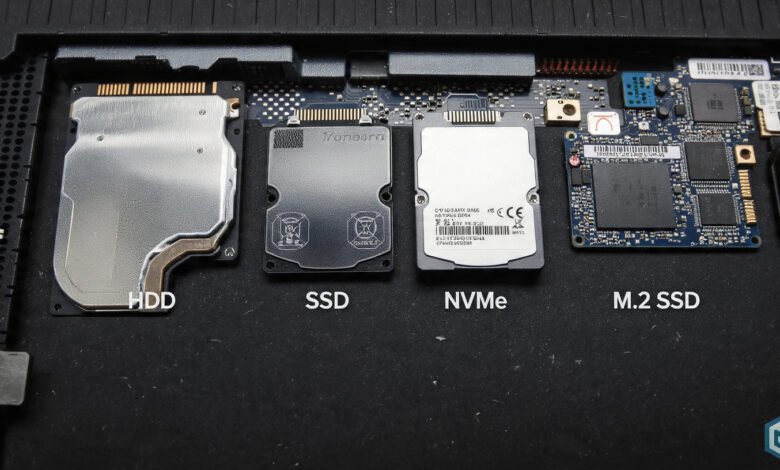
When you’re shopping for a new computer or trying to upgrade your current one, you’ll quickly run into confusing terms like HDD, SSD, NVMe, and M.2. What do these actually mean? Which one is fastest?
And more importantly, which one should you buy? If you’re scratching your head trying to figure out the difference between these storage drives, you’re not alone.
The good news is that once you understand what each one does, choosing the right storage solution becomes much easier.
In this guide, we’ll break down everything you need to know about these four types of storage, compare their speeds and prices, and help you decide which one makes sense for your needs.
What is an HDD (Hard Disk Drive)?
Let’s start with the oldest technology in the bunch. An HDD or hard disk drive has been around for over 50 years. Think of it like an old record player.
Inside the drive, there are spinning metal disks (called platters) with a magnetic coating. A mechanical arm with a read/write head moves over these spinning disks to access your data.
How HDDs Work
Hard disk drives use physical, moving parts to store information. The disks inside spin at speeds like 5,400 RPM or 7,200 RPM (revolutions per minute).


The faster they spin, the quicker your computer can access the data. But here’s the catch – because there are moving parts, HDDs are slower, noisier, and more fragile than newer storage devices.
HDD Speeds and Performance
A typical HDD can reach read and write speeds of around 80-160 MB/s. For a 7,200 RPM drive, you might see speeds up to 160 MB/s. That might sound decent, but compared to newer technology, it’s like comparing a bicycle to a sports car.
Pros and Cons of HDDs
Advantages:
- Very cheap per gigabyte of storage
- Available in huge sizes (up to 20TB or more)
- Good for storing large amounts of data you don’t access often
- Works with any computer that has a SATA port
Disadvantages:
- Slow performance compared to SSDs
- Moving parts can break if dropped
- Makes noise when operating
- Uses more power and generates more heat
- Typical lifespan of only 3-5 years
What is an SSD (Solid State Drive)?
Now we’re getting into the modern stuff. An SSD or solid state drive has no moving parts at all. Instead, it uses flash memory chips to store data, similar to a USB flash drive but much faster and more reliable.
How SSDs Work
Instead of spinning disks and mechanical arms, SSDs store data on interconnected flash memory chips. There’s nothing that needs to spin up or move around, which makes them incredibly fast. When you turn on your computer, an SSD can access files almost instantly.
Types of SSDs: SATA vs NVMe
Here’s where things get interesting. Not all SSDs are created equal. There are two main types:
SATA SSDs use the same connection type as old hard drives. They look like 2.5-inch rectangles and plug into your motherboard with a SATA cable. While they’re much faster than HDDs, they’re limited by the SATA interface itself.
NVMe SSDs use a completely different connection system called PCIe, which we’ll talk about more in the next section.
SSD Speeds and Performance
A SATA SSD can reach speeds of around 500-550 MB/s for both reading and writing data. That’s about 3-4 times faster than a typical HDD. You’ll notice the difference immediately – your computer boots up in seconds instead of minutes, programs open instantly, and files copy much faster.
According to IBM’s guide on storage technology, SSDs also handle up to 100,000 IOPS (input/output operations per second), while HDDs only manage around 200 IOPS.
Pros and Cons of SSDs
Advantages:
- Much faster than HDDs (3-4x faster)
- No moving parts means more durability
- Silent operation
- Uses less power
- Generates less heat
- Longer lifespan (up to 10 years)
- Faster boot times and application loading
Disadvantages:
- More expensive per gigabyte than HDDs
- Limited write cycles (though this rarely matters for normal use)
- Generally available in smaller sizes than HDDs
What is NVMe?
This is where storage gets really fast. NVMe stands for Non-Volatile Memory Express, and it’s not actually a type of drive – it’s a protocol or communication method. Think of it as a language that lets your storage drive talk to your computer.
Understanding the NVMe Protocol
The old SATA interface was designed back when hard disk drives were the norm. It wasn’t built for the lightning-fast speeds that solid state drives are capable of. NVMe was created specifically for SSDs, allowing them to communicate directly with your computer’s CPU through the PCIe interface.
This direct connection means way less waiting around. While SATA has a single queue that can handle up to 32 commands at once, NVMe supports up to 65,000 queues with 65,000 commands each. That’s an insane difference.
NVMe Speed and Performance
NVMe SSDs are blazingly fast. Entry-level NVMe drives can hit speeds of 1,500-2,000 MB/s. Mid-range ones reach 3,000-3,500 MB/s. The newest PCIe 4.0 NVMe drives can achieve speeds of 5,000-7,500 MB/s or even higher. That’s 10-15 times faster than a hard disk drive.
Pros and Cons of NVMe
Advantages:
- Extremely fast data transfer speeds
- Lower latency than SATA
- Better for demanding tasks like video editing and gaming
- Can handle up to 500,000 IOPS or more
- Direct CPU connection reduces bottlenecks
Disadvantages:
- More expensive than SATA SSDs
- Requires a compatible motherboard with NVMe support
- May generate more heat during heavy use
- Overkill for basic computing tasks
What is M.2?
Here’s where people get confused. M.2 isn’t a type of drive or a speed rating – it’s a form factor, which just means it’s a physical shape and size standard.
Understanding the M.2 Form Factor
An M.2 drive looks like a small stick of gum. It plugs directly into a special M.2 slot on your motherboard without needing any cables. This saves space and looks cleaner inside your computer.
But here’s the important part: M.2 drives can be either SATA or NVMe. You can have an M.2 SATA SSD or an M.2 NVMe SSD. They look almost identical on the outside, but they perform very differently.
How to Tell M.2 Drive Types Apart
Look at the notches (gaps) on the connector edge of the drive:
- M.2 SATA drives usually have two notches (B+M key)
- M.2 NVMe drives typically have one notch (M key only)
Your motherboard’s M.2 slot also has these keys, so you need to match them up. Some slots support both SATA and NVMe, while others only support one type.
M.2 Sizes
M.2 drives come in different lengths, shown by numbers like 2280, 2260, or 2242. The first two digits are the width (always 22mm), and the last two are the length in millimeters. The most common size is 2280 (22mm x 80mm).
Direct Comparison: HDD vs SSD vs NVMe vs M.2
Let’s put all this information side by side so you can see the real differences:
Speed Comparison
- HDD: 80-160 MB/s
- SATA SSD (including M.2 SATA): 500-550 MB/s
- NVMe SSD PCIe 3.0: 1,500-3,500 MB/s
- NVMe SSD PCIe 4.0: 5,000-7,500 MB/s
- NVMe SSD PCIe 5.0: Up to 14,000 MB/s
Price Comparison (1TB drives)
- HDD: $40-60
- SATA SSD: $70-90
- M.2 NVMe PCIe 3.0: $90-120
- M.2 NVMe PCIe 4.0: $120-200
- M.2 NVMe PCIe 5.0: $200-300
Storage Capacity Options
- HDD: 500GB to 20TB+ (commonly up to 4TB)
- SATA SSD: 120GB to 4TB (commonly 500GB to 2TB)
- NVMe M.2: 250GB to 8TB (commonly 500GB to 2TB)
Lifespan and Durability
- HDD: 3-5 years (mechanical failure risk)
- SSD/NVMe: 5-10 years (wear leveling extends life)
Which Storage Drive Should You Choose?
Now for the big question – which one is right for you? It depends on what you’re using your computer for and how much you want to spend.
Choose an HDD if:
- You need massive amounts of cheap storage
- You’re building a backup or archive system
- Speed isn’t important for your use case
- You’re storing large media files you rarely access
- Budget is your top priority
Choose a SATA SSD if:
- You want a major speed boost over an HDD
- Your computer doesn’t have an M.2 slot
- You do basic tasks like web browsing, office work, and casual gaming
- You want a good balance of price and performance
- You’re upgrading an older laptop
Choose an NVMe M.2 SSD if:
- You want the fastest possible speeds
- Your motherboard has an available M.2 slot with NVMe support
- You do demanding tasks like video editing, 3D rendering, or professional work
- You’re a serious gamer who wants the fastest load times
- You regularly transfer large files
- You’re building a new computer
Best Strategy: Combine Multiple Drives
Many people use a combination approach for the best value:
- Install a smaller NVMe M.2 SSD (500GB-1TB) for your operating system and main programs
- Add a larger SATA SSD or HDD (2TB-4TB+) for storing games, photos, videos, and documents
This gives you lightning-fast boot times and program loading, while still having plenty of cheap storage space.
Real-World Performance: Does It Matter?
You might wonder if these speed differences actually matter in daily use. According to PCWorld’s storage guide, the answer depends on what you’re doing.
For Basic Computer Use
If you’re just browsing the web, checking email, and using office programs, even a basic SATA SSD will feel incredibly fast compared to an HDD. You probably won’t notice much difference between a SATA SSD and an NVMe drive for these tasks.
For Gaming
SSD gaming performance is noticeably better than using an HDD. Modern games have huge files, and loading them from an SSD cuts load times dramatically.
An NVMe drive makes loading even faster, though the difference isn’t as dramatic as going from HDD to SSD.
For Professional Work
If you edit 4K videos, work with huge Photoshop files, or run data analysis programs, the speed of an NVMe SSD can save you hours of time.
When you’re transferring 100GB video files or rendering complex projects, those extra MB/s really add up.
Technical Details: Understanding Interfaces
Let’s clarify one more thing that confuses people. The PCIe interface and SATA interface are the highways that data travels on.
SATA is an older highway with a speed limit. It maxes out at about 6 Gbps (gigabits per second), which equals roughly 600 MB/s in real-world use. Because of overhead, actual speeds are around 550 MB/s.
PCIe is a much wider, faster highway. PCIe 3.0 x4 (four lanes) can handle up to 32 Gbps or about 3,500 MB/s. PCIe 4.0 doubles that to 64 Gbps or 7,000 MB/s. The newest PCIe 5.0 doubles it again.
Installation and Compatibility
Before you buy any storage drive, check what your computer supports.
Check Your Motherboard
Look up your motherboard model and check:
- Does it have M.2 slots?
- Do those slots support NVMe, SATA, or both?
- What PCIe generation does it support?
- How many M.2 slots are available?
Laptop Users
Many modern laptops have one M.2 slot inside. Some have two. Check your laptop’s specifications or open it up to see. Be aware that some laptops have the SSD soldered to the motherboard, making upgrades impossible.
Desktop Users
Most modern motherboards have at least one M.2 slot that supports NVMe. High-end motherboards might have three or four slots. You can also use PCIe adapter cards to add more M.2 slots if needed.
Conclusion
Understanding the difference between HDD vs SSD vs NVMe vs M.2 doesn’t have to be complicated. HDDs are cheap and spacious but slow with moving parts. SSDs using the SATA interface are much faster than HDDs and perfect for basic upgrades.
NVMe is a super-fast protocol that makes SSDs even faster by using the PCIe interface for direct CPU communication.
M.2 is just a small stick-shaped form factor that can house either SATA or NVMe drives. For most people building or upgrading a computer today, an M.2 NVMe SSD offers the best performance and future-proofing, while HDDs still make sense for bulk storage where speed doesn’t matter.
The key is matching your storage solution to your actual needs and budget rather than just buying the fastest option available.