Phone Doesn’t Charge? Here’s How to Fix It Fast
Discover why your phone doesn't charge and how to fix it. Learn proven solutions for charging port issues, cable problems, and battery troubles today.
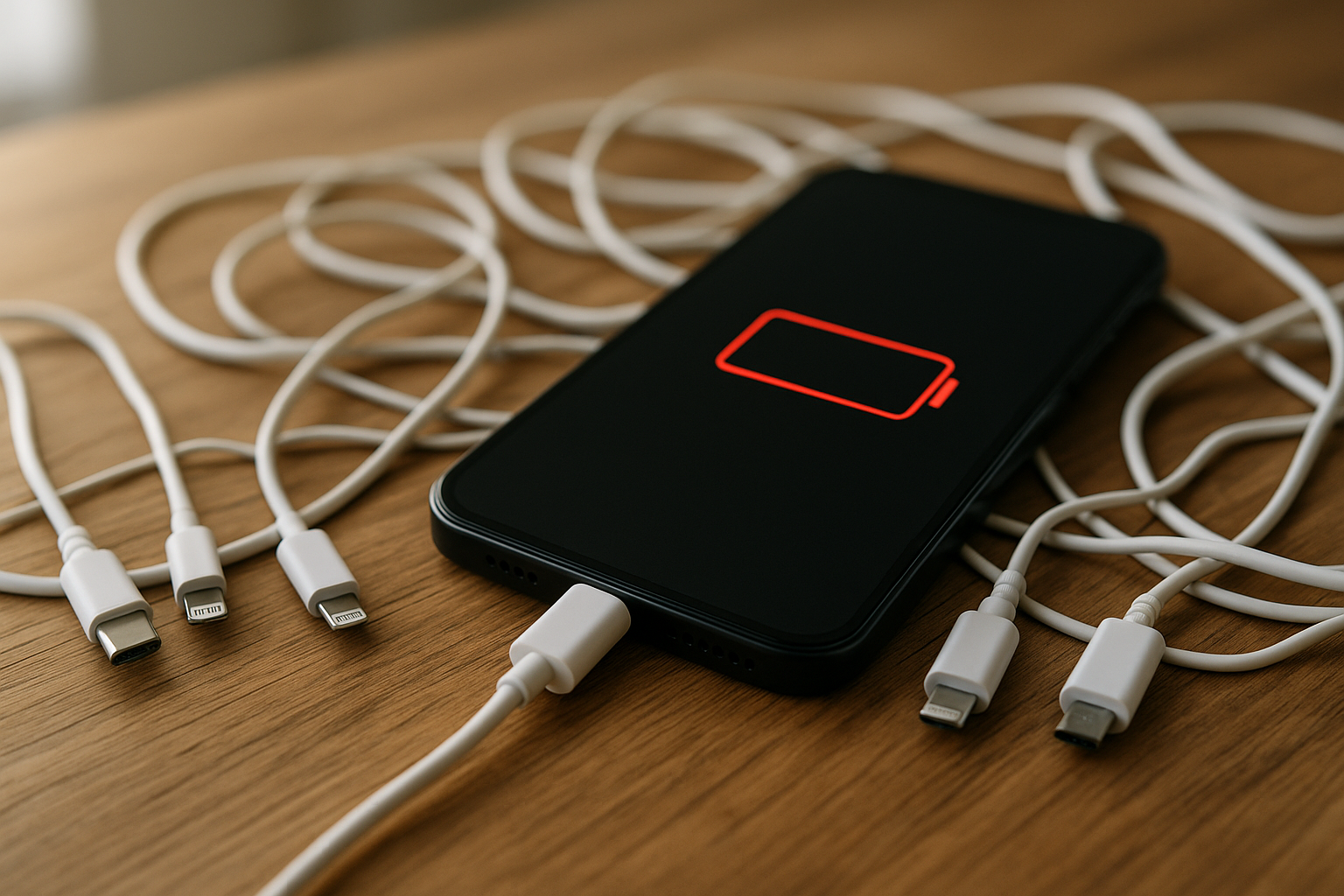
You reach for your charger after a long day, plug in your phone, and nothing happens. The screen stays dark, the battery icon doesn’t appear, and panic sets in. A phone that won’t charge is one of the most frustrating tech problems you can face, especially when you rely on your device for work, communication, and daily tasks.
The good news is that most charging issues aren’t as serious as they seem. Before you rush to a repair shop or consider buying a new phone, you can troubleshoot the problem yourself. In most cases, the solution is surprisingly simple—a dirty charging port, a damaged USB cable, or a minor software glitch. Understanding the root cause will save you time, money, and unnecessary stress.
This guide walks you through every possible reason why your phone isn’t charging and provides practical, tested solutions. Whether you’re dealing with an iPhone, Samsung, Google Pixel, or any other smartphone, these troubleshooting steps apply across the board. From checking your charging accessories to cleaning debris from your port, we’ll cover everything you need to restore power to your device. By the end of this article, you’ll know exactly what to do when your phone refuses to charge.
Common Reasons Why Your Phone Won’t Charge
Understanding why your phone doesn’t charge is the first step toward fixing it. The problem could stem from your accessories, the device itself, or even software complications. Let’s break down the most common culprits.
Faulty Charging Cable or Adapter
Your charging cable takes a beating. You toss it in bags, trip over it, bend it at weird angles, and plug it in hundreds of times. Over time, these cables develop internal wire breaks that prevent proper charging even when they look fine on the outside.
Similarly, your wall charger or power adapter can malfunction. The prongs might bend, the internal circuitry can fail, or the connection points wear out. A damaged adapter won’t deliver consistent power to your phone, resulting in slow charging or no charging at all.
Signs your cable or adapter is the problem:
- The phone only charges when you hold the cable at a specific angle
- You see frayed wires or exposed metal on the cable
- The adapter feels unusually hot during charging
- Your phone charges with a different cable but not with your regular one
Dirty or Blocked Charging Port
This is shockingly common. Your charging port is an open hole that collects pocket lint, dust, dirt, and debris every single day. When you plug in your charger, you compress this material deeper into the port until it blocks the metal contacts that transfer power.
A blocked port prevents the charger from making a solid connection. Your phone might show it’s charging briefly, then stop. Or it might not respond at all when you plug it in. According to research from Google’s Android support documentation, port debris is one of the top reasons for charging problems.
Battery Health Issues
Phone batteries don’t last forever. After 2-3 years of regular use, your battery health naturally declines. A degraded battery might hold less charge, take longer to power up, or fail to charge beyond a certain percentage.
Modern smartphones use lithium-ion batteries that lose capacity over time through regular charge cycles. If your phone is several years old and experiencing charging issues, the battery itself might need replacement rather than the charging system.
Software Glitches
Sometimes the problem isn’t hardware at all. A software glitch can interfere with your phone’s ability to recognize the charger or manage power correctly. This might happen after an update, when certain apps crash, or when background processes consume excessive resources.
Your phone’s operating system manages the charging process. When something goes wrong with that software, your device might not register that it’s plugged in, even when everything else works perfectly.
Damaged Charging Port
Physical damage to your charging port happens more often than you’d think. Dropping your phone, inserting the cable roughly, or using incompatible chargers can bend the internal pins or crack the port housing. Water damage can also corrode the metal contacts inside the port.
A damaged charging port typically requires professional repair, but you should rule out simpler problems first before concluding the port is broken.
Also Read: Top 10 Best Portable Power Stations in 2025: Reviewed and Tested
Step-by-Step Troubleshooting Guide
Now that you understand the potential causes, let’s work through solutions systematically. Start with the easiest fixes and progress to more complex troubleshooting.
Check Your Charging Cable and Adapter
Begin by examining your charging accessories carefully. Look for visible damage on your USB cable—frayed sections, kinks, or exposed wires mean you need a replacement immediately.
Test your charger with another device. If that device charges normally, your cable and adapter work fine. If it doesn’t charge the other device either, you’ve found your problem.
Try charging your phone with a completely different charging cable and wall charger. Borrow one from a friend or family member if needed. If your phone suddenly charges with different accessories, replace your damaged cable and adapter with quality alternatives from reputable brands.
Pro tip: Always use certified chargers. Cheap, uncertified cables might save money initially but can damage your phone’s battery and charging circuitry over time.
Inspect and Clean Your Charging Port
Cleaning your charging port often solves the problem instantly. Here’s how to do it safely:
You’ll need:
- A bright flashlight or lamp
- Compressed air (preferred method)
- A wooden or plastic toothpick (never metal)
- Isopropyl alcohol and cotton swabs (optional)
Cleaning process:
- Power off your phone completely before cleaning
- Shine a light into the charging port to inspect it
- If you see dust or lint, use short bursts of compressed air to blow it out
- Hold your phone with the port facing downward so debris falls out
- For stubborn buildup, gently insert a toothpick and scrape along the port’s walls
- Be extremely careful not to damage the internal pins
- Use compressed air again to remove loosened particles
- For greasy residue, lightly dampen a cotton swab with isopropyl alcohol and gently clean the port
According to guidance from Apple’s official support page, removing port debris resolves most iPhone charging problems without requiring technical service.
Important safety notes:
- Never use metal objects like pins or needles—they can short-circuit your phone
- Don’t blow into the port with your breath—moisture causes corrosion
- Avoid excessive liquid—use alcohol sparingly
Try Different Power Sources
The problem might not be your phone at all. Wall outlets occasionally malfunction, power strips fail, and USB ports on computers don’t always provide sufficient power.
Test these alternatives:
- Plug into a different wall outlet in another room
- Try a different power strip or surge protector
- Switch from a USB port to a wall outlet
- Use a different computer’s USB port if charging via PC
- Test a portable power bank
If your phone charges from one source but not another, you’ve isolated the issue to your power source rather than the device.
Restart Your Phone
This simple fix resolves countless software glitches. A restart clears your phone’s temporary memory, closes problematic apps, and refreshes system processes that might interfere with charging.
For most Android phones:
- Press and hold the power button and volume down button simultaneously
- Wait for the restart option to appear
- Tap “Restart” and wait for your phone to reboot
For iPhone 8 and later:
- Quickly press and release the volume up button
- Quickly press and release the volume down button
- Press and hold the side button until the Apple logo appears
For iPhone 7:
- Press and hold the power button and volume down button together
- Keep holding until you see the Apple logo
After restarting, plug in your charger and check if charging problems persist.
Update Your Phone’s Software
Outdated software can cause charging issues. Manufacturers release updates that fix bugs and improve battery management.
For Android devices:
- Open Settings
- Navigate to System > Software Update
- Download and install available updates
For iPhone:
- Open Settings
- Tap General > Software Update
- Install any available iOS updates
Let your phone charge for at least 30 minutes before attempting an update if your battery is critically low.
Check Battery Health
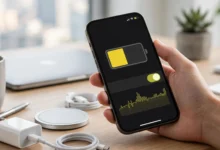
Both Android and iOS devices offer tools to check your battery health. This tells you if battery degradation is causing your charging problems.
For iPhone:
- Go to Settings > Battery > Battery Health & Charging
- Check the “Maximum Capacity” percentage
- If it’s below 80%, consider battery replacement
For Samsung phones:
- Open Samsung Members app
- Tap the Support tab
- Select “Phone diagnostics” > “Battery status”
For other Android devices:
- Download the Ampere app from Google Play
- Check charging status and battery health information
If your battery health is significantly degraded, professional replacement might be your best option.
Try Wireless Charging
If your phone supports wireless charging, this can help determine whether the problem is specifically with your charging port or a broader battery issue.
Place your phone on a wireless charging pad. If it charges wirelessly but not with a cable, your charging port likely needs cleaning or repair. If it won’t charge wirelessly either, the problem might be your battery or internal charging circuitry.
Force Restart Your Phone
When a standard restart doesn’t work, try a force restart. This performs a deeper reset without deleting your data.
For iPhone 8 and newer:
- Press and quickly release volume up
- Press and quickly release volume down
- Press and hold the side button until the Apple logo appears
For most Android phones:
- Press and hold power and volume down for 10-15 seconds
- Wait for the device to restart
A force restart can resolve deeper software glitches that prevent normal charging.
When to Seek Professional Help
You’ve tried everything and your phone still won’t charge. At this point, professional diagnosis makes sense. Here are signs you need expert assistance:
- Your charging port appears physically damaged or corroded
- The phone shows clear signs of water damage
- Your device is several years old with severe battery drain
- You’ve eliminated all other causes through troubleshooting
- The phone charges extremely slowly regardless of cable or adapter
Repair options to consider:
Official manufacturer service: Apple Store, Samsung authorized service centers, or Google support offer genuine parts and certified repairs. These cost more but maintain your warranty and device integrity.
Third-party repair shops: Local phone repair businesses often charge less and complete repairs faster. Check reviews carefully and ask about warranty on repairs.
Battery replacement services: If battery testing reveals significant degradation, replacement is straightforward and relatively affordable—typically $50-150 depending on your phone model.
Charging port repair: Expect to pay $60-200 for charging port replacement depending on your device. Premium phones cost more due to complex internal designs.
Preventing Future Charging Problems
Once you fix your charging issues, take steps to prevent them from happening again:
Use quality charging accessories: Invest in certified cables and adapters from reputable manufacturers. Cheap knockoffs damage your phone’s battery and charging system.
Keep your charging port clean: Check monthly for debris buildup. Quick cleaning prevents major blockages that stop charging completely.
Handle cables gently: Don’t yank cables out, wrap them tightly, or bend them at sharp angles. Proper cable management extends their lifespan significantly.
Avoid extreme temperatures: Don’t charge your phone in very hot or cold environments. Extreme temperatures damage batteries and reduce charging efficiency.
Remove phone cases while charging: Some thick cases trap heat during charging, which degrades battery health over time. Remove the case if your phone gets warm while plugged in.
Use original chargers when possible: Your phone’s manufacturer designed specific chargers to work optimally with your device. Third-party chargers work, but original equipment typically performs better.
Don’t wait until 0% battery: Lithium-ion batteries last longer when you keep them between 20-80% charge. Frequently draining to zero stresses the battery unnecessarily.
Understanding Fast Charging and Cable Types
Modern phones support various fast charging technologies that affect how your device powers up. Using the wrong cable type can prevent charging entirely.
Common charging standards:
USB-C: The current industry standard found on most Android phones and newer devices. USB-C cables are reversible and support fast data transfer and charging.
Lightning: Apple’s proprietary connector used on iPhones. Only Lightning cables work with iPhone charging ports.
Micro-USB: Older Android standard being phased out. Still common on budget devices and older phones.
USB Power Delivery (USB-PD): Fast charging protocol that delivers higher wattage for rapid charging. Requires compatible cable and adapter.
Qualcomm Quick Charge: Another fast charging technology common in Android devices. Different versions offer varying charging speeds.
Match your charging accessories to your phone’s specifications for optimal results. Using a USB-C cable on a Lightning port obviously won’t work, but subtle mismatches in fast charging protocols can also cause problems.
Conclusion
A phone that won’t charge creates immediate stress, but the fix is usually simpler than you expect. Start by checking your charging cable and wall charger for damage, then clean your charging port thoroughly to remove accumulated debris.
Test different power sources and restart your device to eliminate software glitches. If these basic troubleshooting steps don’t restore power, check your battery health and consider whether physical damage requires professional repair. Most charging problems resolve with simple maintenance—a clean port, quality cables, and proper care prevent future issues.
When basic fixes fail, don’t hesitate to seek help from authorized service centers that can diagnose complex battery issues or damaged internal components. Your phone is too important to stay dead, and with these proven solutions, you’ll have it charging normally again in no time.