Hidden iPhone settings are the controls Apple buries three or four taps deep, the ones that quietly decide who sees your location, your habits, and your inbox. Most people never touch them because the defaults favor convenience, not protection. That gap is exactly where trouble starts.
Your iPhone is not spying on you in some movie-villain sense. The real problem is more boring and more common: apps, advertisers, and data brokers collect small pieces of information all day, then sell or share them in ways you never agreed to. Regulators have fined companies for this. Courts have handled stalking cases built on tracking tools that anyone can buy. The stories are real, documented, and surprisingly ordinary.
The good news is that you do not need a new phone or a subscription to fix it. You need about fifteen minutes and a short list. This guide walks through eight hidden iPhone settings worth changing right now, explains what each one actually does, and ties each to a real case so you can see why it matters. No jargon, no fear-mongering, just the switches that give you back control. By the end, you will have shut off the leaks that cause the most damage, and you will understand what your phone was sharing before you stepped in. Let’s get your privacy back.
Why Your Default iPhone Settings Leave You Exposed
Apple genuinely builds strong privacy tools. The catch is that many of them ship turned off, or set to the most permissive option, because Apple wants apps to work smoothly out of the box. A fresh iPhone hands out location access, lets apps request tracking, and keeps a quiet log of where you spend your time. None of that is illegal. All of it is optional.
The reason this matters comes down to one word: brokers. There is an entire industry that buys location and behavior data from apps, bundles it, and resells it. The U.S. Federal Trade Commission has taken formal action against several of these companies. In 2024 it settled with a data broker called Outlogic, formerly X-Mode, over selling precise location data that could reveal visits to medical clinics, places of worship, and domestic abuse shelters. You can read the agency’s own summary of that case on the FTC’s press release page. The data did not come from some dramatic hack. It came from ordinary apps that had location permission and a quiet agreement to share.
That is the core idea behind every fix below. These hidden iPhone settings cut off the supply at the source, on your device, before the data ever leaves.
1. Turn Off App Tracking Transparency Requests Globally
This is the single highest-impact change, and it takes about thirty seconds.

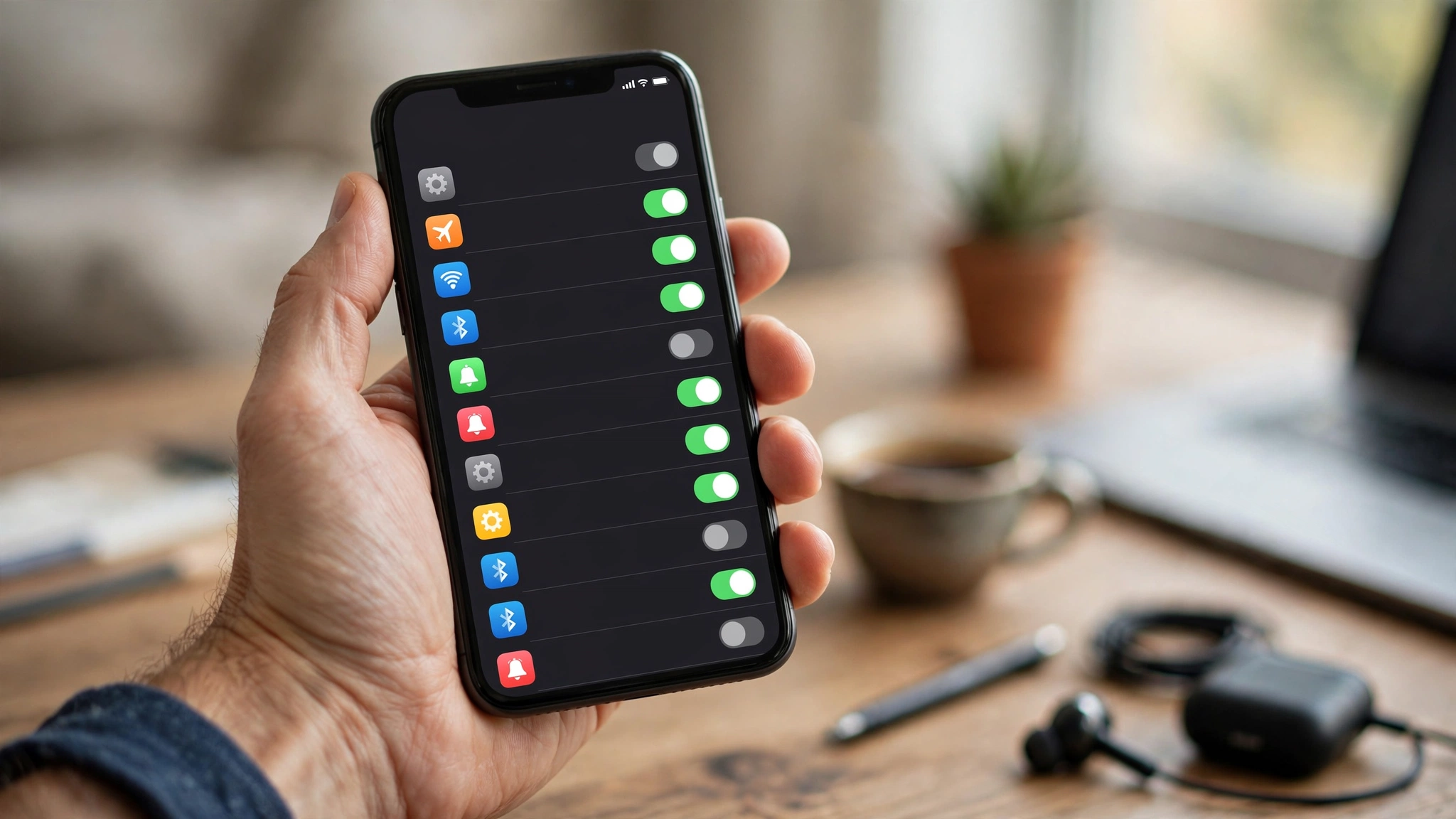
When you see the pop-up that says “Allow [App] to track your activity across other companies’ apps and websites,” that is App Tracking Transparency at work. Apple forces apps to ask. But there is a master switch that stops them from even asking, which means every request is denied by default.
How to fix it:
- Open Settings
- Tap Privacy & Security
- Tap Tracking
- Toggle off Allow Apps to Request to Track
With this off, apps cannot link your behavior to the hidden advertising identifier used to follow you around the web. One of the most telling examples here involves the app Muslim Pro. In 2020, reporting from Motherboard revealed that location data flowing out of the app through a broker reportedly ended up in the hands of U.S. defense contractors. The app itself was not malicious. The pipeline was the problem, and App Tracking Transparency is the valve that shuts it. Turning off tracking here is one of the most important hidden iPhone settings anyone can change, and it costs you almost nothing in daily use.
2. Audit Location Services App by App
Location is the crown jewel for data brokers because it reveals so much. Where you sleep, work, worship, and seek medical care can all be inferred from a location trail. Many apps ask for “Always” access when they only need it “While Using,” or do not need it at all.
How to fix it:
- Go to Settings
- Tap Privacy & Security
- Tap Location Services
- Go through each app and choose the lowest level that still works:
- Never for apps that have no business knowing where you are
- While Using the App for maps, weather, and rideshare
- Ask Next Time if you want to decide case by case
- For apps that do not need pinpoint accuracy, toggle off Precise Location so they only get a rough area
A weather app does not need your exact coordinates, and a game certainly does not need background location. The Grindr case drives this home. In 2021, Norway’s data protection authority fined the app for sharing user data, including location, with advertising partners without proper consent. Precise location tied to a sensitive app is a textbook privacy risk. Reviewing these permissions is one of the most practical hidden iPhone settings chores you can do, and it pays off immediately.
Set Background App Refresh With Intent
While you are tightening location, check Settings > General > Background App Refresh. Apps that refresh in the background can also phone home with data when you are not looking. Turn it off for anything that does not genuinely need live updates. Your battery will thank you too.
3. Shut Off Significant Locations, the History You Forgot Existed
This one surprises almost everyone. Your iPhone keeps a running log of the places you visit most, with dates, times, and frequency. Apple calls it Significant Locations, and it is buried deep. The feature is encrypted and meant to power helpful suggestions, but it is still a detailed diary of your movements sitting on your device.
How to fix it:
- Open Settings
- Tap Privacy & Security
- Tap Location Services
- Scroll to the bottom and tap System Services
- Tap Significant Locations
- Review the list, then tap Clear History and toggle the feature off if you do not want it kept
Why does this matter beyond Apple? Because a location history on an unlocked or shared device is a gift to anyone who wants to monitor you. Stalking cases have repeatedly involved an abuser with physical access to a partner’s phone. Removing this log closes one more door. Among all the hidden iPhone settings, this is the one people are most shocked to find, simply because they never knew their phone was keeping the record.
4. Turn On the App Privacy Report to Catch Bad Actors
Most privacy work is defensive. The App Privacy Report flips that around and lets you play detective. Once enabled, it shows you which apps accessed your camera, microphone, location, photos, and contacts, and crucially, which outside web domains they contacted in the background.
How to fix it:
- Go to Settings
- Tap Privacy & Security
- Tap App Privacy Report
- Tap Turn On App Privacy Report
Give it a few days, then check back. You will sometimes find a flashlight or wallpaper app quietly pinging dozens of advertising and analytics domains. That pattern is exactly how broker data gets collected at scale. The FTC’s actions against data collectors like Kochava hinged on this kind of silent, high-volume harvesting. The report does not block anything on its own, but it tells you which apps to delete or restrict. Think of it as the dashboard for every other fix on this list, and one of the smartest hidden iPhone settings to leave running permanently.
5. Protect Your Inbox With Mail Privacy Protection
Marketing emails are packed with invisible tracking pixels. These tiny images report back when you open a message, roughly where you were, and what device you used. Over time, that builds a behavioral profile without a single click from you.
Apple’s Mail Privacy Protection blocks this by loading content through a proxy, hiding your IP address, and preventing senders from knowing whether you opened their email.
How to fix it:
- Open Settings
- Scroll down and tap Apps, then Mail (or Mail directly, depending on your iOS version)
- Tap Privacy Protection
- Toggle on Protect Mail Activity
This does two useful things at once. It stops open-tracking, and it masks your location from the sender. Email-based tracking has been a quiet workhorse of the ad industry for years, and most people have no idea it is happening in every newsletter. Flipping this switch is one of the easiest hidden iPhone settings with a genuinely large payoff.
6. Lock Down Safari Against Cross-Site Tracking
Your browser is a prime tracking surface. Advertisers use cookies and fingerprinting to follow you from site to site, stitching together a profile of everything you read and buy. Safari has strong defenses, but they work best when you confirm they are on and tighten the advanced options.
How to fix it:
- Go to Settings
- Tap Apps, then Safari
- Under Privacy, toggle on Prevent Cross-Site Tracking
- Turn on Advanced Tracking and Fingerprinting Protection and set it to apply to all browsing if your version allows
- Consider toggling on Hide IP Address from trackers
For an extra layer, if you have iCloud+, turn on iCloud Private Relay under Settings > [Your Name] > iCloud. It routes your Safari traffic through two relays so neither Apple nor the websites you visit can build a full picture of your browsing from your IP.
The scale of web tracking is not hypothetical. The entire data-broker economy that drew FTC action is fed partly by cross-site identifiers. Apple maintains a plain-language overview of how these protections work on its official privacy features page, which is worth a read if you want the technical details. Tightening Safari is one of the most effective hidden iPhone settings for cutting off everyday surveillance.
7. Reset and Limit Your Apple Advertising Identifier
Even within Apple’s own ecosystem, there is an identifier used to personalize ads. You can switch off personalization and reset the identifier so any profile built against it starts from scratch.
How to fix it:
- Open Settings
- Tap Privacy & Security
- Scroll to Apple Advertising
- Toggle off Personalized Ads
While you are nearby, check Analytics & Improvements in the same Privacy & Security menu and turn off data sharing if you prefer not to send usage analytics. None of this breaks your phone. It simply stops the quiet accumulation of a profile tied to you. People often overlook these hidden iPhone settings because they assume Apple’s own ads are harmless, but limiting them is still good hygiene and takes under a minute.
Clear and Manage Your Advertising Footprint Periodically
Treat this like changing a password. Reset the advertising identifier every few months, and pair it with a quick location and tracking review. Privacy is not a one-time switch, it is a short habit.
8. Enable Lockdown Mode and Audit Location Sharing
The final fix has two parts, both aimed at the most serious threats: targeted spyware and unwanted personal tracking.
First, audit who you are sharing your location with. Abusers and stalkers frequently exploit sharing features rather than exotic hacks.
How to check sharing:
- Go to Settings
- Tap [Your Name], then Find My
- Review Share My Location and remove anyone who should not be there
- Open the Find My app and check the People tab for active shares
The rise of AirTags brought this risk into the open. Apple added unwanted-tracker alerts after documented cases of people being followed by trackers slipped into bags and cars. If your iPhone warns you that an unknown accessory is moving with you, take it seriously and follow the on-screen steps to locate it.
Second, for high-risk users like journalists, activists, or anyone facing a capable adversary, there is Lockdown Mode. It drastically limits attack surfaces by restricting message attachments, certain web technologies, and incoming invites.
How to turn it on:
- Open Settings
- Tap Privacy & Security
- Scroll to Lockdown Mode
- Tap Turn On Lockdown Mode
This is not for everyone, since it does limit some functionality, but for people who have genuine reason to worry about commercial spyware, it is a powerful shield. Rounding out the list, these two steps are the heavy-duty end of the hidden iPhone settings spectrum, and they matter most to the people who need them most.
A Quick Recap Checklist You Can Run in 15 Minutes
Here is the whole list in order, so you can move fast:
- Turn off App Tracking under Privacy & Security > Tracking
- Audit Location Services app by app, and disable Precise Location where possible
- Clear and disable Significant Locations in System Services
- Enable the App Privacy Report to monitor app behavior
- Turn on Mail Privacy Protection to kill tracking pixels
- Lock down Safari with cross-site and fingerprinting protection
- Limit Apple Advertising and reset your identifier
- Audit location sharing and consider Lockdown Mode for high-risk use
Run through these once, then revisit every few months. The threats evolve, and so should your defenses.
What These Settings Actually Protect You From
It helps to remember what you are defending against, because it keeps the effort in perspective. You are not mainly worried about Apple. You are worried about the long chain that starts with an ordinary app and ends with a data broker, an advertiser, or in the worst cases, a stalker. Every documented case referenced here, from the FTC’s broker settlements to the Grindr fine to the AirTag stalking reports, shares the same shape. Data that seemed harmless in isolation became dangerous once it was combined, sold, or handed to someone with bad intent.
The eight hidden iPhone settings above attack that chain at the earliest point, which is your own device. Shut off the collection, and there is nothing to combine or sell. That is why fixing them on your phone beats trying to opt out with hundreds of companies downstream. You will never win that game company by company. You win it once, at the source.
Conclusion
Your iPhone already includes almost everything you need to protect your privacy, but Apple leaves many of the most important controls switched off or set to the most permissive option, which is why these hidden iPhone settings deserve your attention today. In roughly fifteen minutes you can stop apps from tracking you across the web, strip precise location from apps that do not need it, wipe the quiet history of where you have been, block invisible email tracking, harden Safari against cross-site surveillance, limit advertising profiles, and shut down the sharing and spyware risks that have fueled real regulatory fines and genuine stalking cases. The examples are not scare stories, they are documented events tied to the exact permissions you just reviewed, and that connection is the whole point. Change these settings once, build a short habit of revisiting them every few months, and you take back control of your data at the only place where control truly works, which is your own device. Save your sanity, make the changes now, and let your iPhone work for you instead of quietly working against you.