How to Improve iPhone Battery Life on iOS 27: 13 Practical Tips
iOS 27 battery draining fast after the update? Here are 13 proven fixes to stop drain, cut overheating, and restore full-day iPhone battery life.
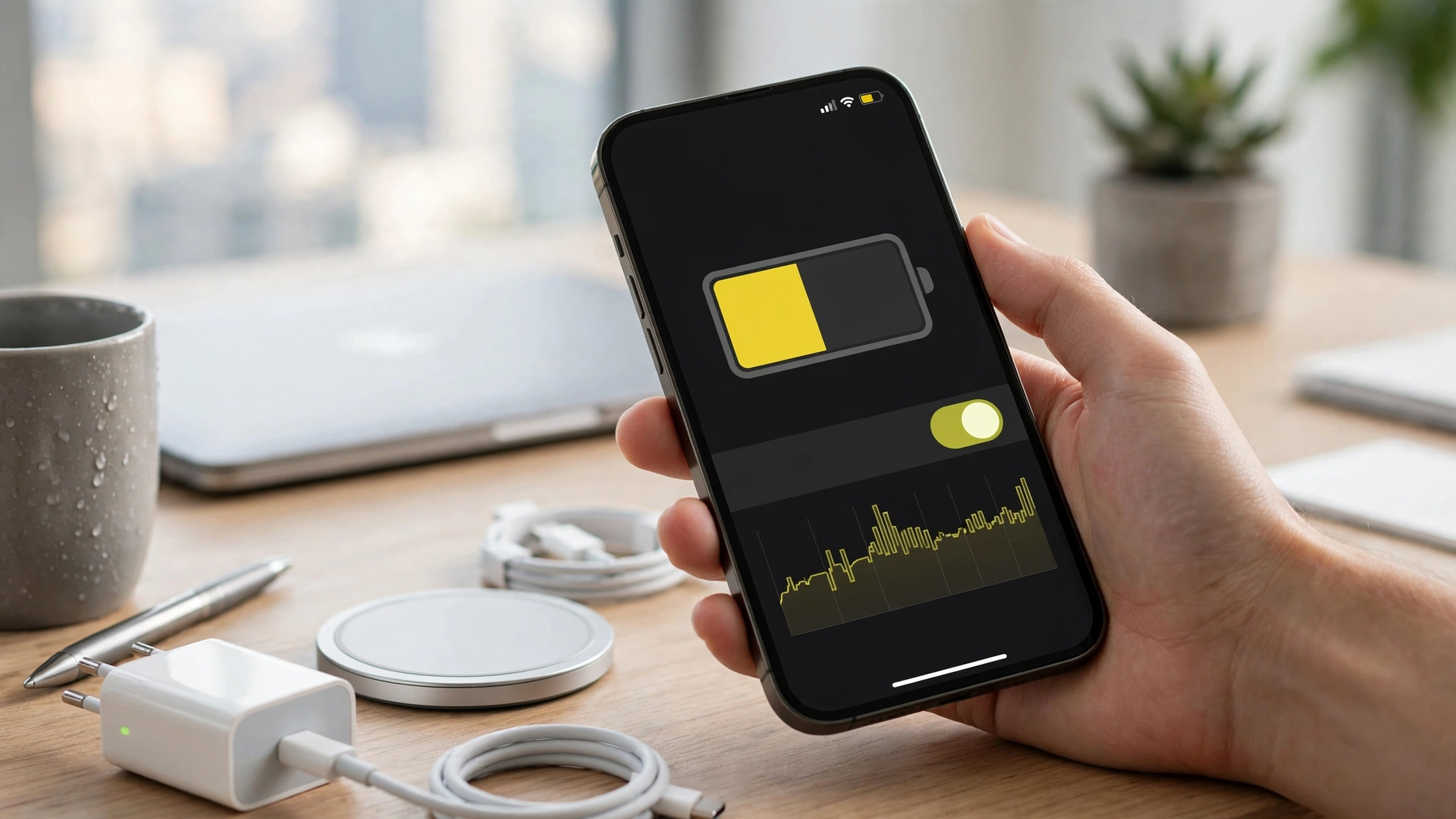
iOS 27 landed on iPhones in September 2026, and almost immediately, the complaints started rolling in. “My battery is dying by lunchtime.” “My phone feels warm in my pocket.” “What did Apple do?” If any of that sounds familiar, take a breath, because you are not imagining it, and you are definitely not alone.
The truth is that iOS 27 battery drain right after an update is usually temporary, and most of it comes down to your iPhone quietly doing housekeeping in the background. But “usually temporary” is not the same as “nothing you can do.” Some of that drain is caused by settings you can change in under a minute, outdated apps that need a refresh, or features you forgot were even switched on.
This guide walks you through 13 practical fixes, starting with the easiest ones. No jailbreaking, no sketchy third-party “booster” apps, and no gimmicks that promise to double your battery overnight. We will also look at a real piece of iPhone history, Apple’s infamous “Batterygate” scandal, because it is a useful reminder of why honest, ethical battery advice matters and why you should be skeptical of anyone selling you a miracle cure. Let’s get your iPhone back to lasting a full day.
Why Is iOS 27 Draining Your iPhone Battery?
Before you start flipping switches, it helps to understand what is actually happening. A major software update does a lot more than swap out a few files.
After you install iOS 27, your iPhone gets busy. After iOS 27 is installed, the iPhone may rebuild search indexes, refresh apps, download system assets, and prepare data for Siri and other AI features. All of that work burns power and can make your phone feel warmer than normal, even when the screen is off.
Here is the part most people miss: the extra battery use is usually most noticeable during the first 24 to 48 hours, and on some phones, it can continue for two or three days. If you have a huge photo library or lean heavily on Siri and Apple Intelligence features, the cleanup can take even longer.
So some iOS 27 battery drain is normal and will fade on its own. The goal of the fixes below is to rule out the stuff that is not normal, the settings and apps that keep draining your battery long after the update has settled in.

Signs your drain is normal vs. a real problem
- Normal: Faster drain and mild warmth for the first two or three days, then steady improvement.
- Normal: Occasional heat while charging or using the camera for long stretches.
- Worth investigating: Heavy drain that is still happening a week or more after updating.
- Worth investigating: The phone getting hot while idle, or one specific app eating a huge share of your battery.
13 Quick Fixes for iOS 27 Battery Drain
Work through these in order. The early ones are simple and solve most cases, so there is a good chance you will not need to reach number 13.
1. Give iOS 27 time to finish its background work
This is the fix nobody wants to hear, but it is the most important one. If you updated yesterday, a lot of your drain is just the phone catching up.
Plug your iPhone in, connect to Wi-Fi, and let it sit, ideally overnight. Apple says the post-update activity does not harm the battery, and battery life should return to normal once the processing is complete. Give it two or three days before you panic. In many cases, the iOS 27 battery problem fixes itself.
2. Install the latest iOS 27 point update
Apple pushes out small follow-up updates specifically to clean up early bugs. Apple released iOS 27.0.1 on September 28, 2026, and the update includes fixes for some early issues reported after the initial iOS 27 release.
To check:
- Open Settings.
- Tap General, then Software Update.
- Install anything that is waiting.
Keeping your phone on the newest version of iOS 27 is one of the single best things you can do, since battery-related fixes often ship in these minor releases.
3. Restart your iPhone
It sounds too obvious to work, but a restart clears out stuck processes and rogue background tasks that may be quietly draining power. Turn your iPhone fully off, wait about ten seconds, then turn it back on. This alone resolves a surprising amount of iOS 27 battery drain, especially the kind that shows up out of nowhere.
4. Find the battery hog in your settings
Your iPhone keeps a detailed record of exactly what is using your power. This is your single most useful diagnostic tool.
- Open Settings.
- Tap Battery.
- Scroll to the usage breakdown and look at the last 24 hours and the last 10 days.
Look for anything unusual. If a game you played once is showing 30% of your battery, or an app you barely touch is burning power in the background, you have found your culprit. Social media apps, navigation apps, and anything with constant location access tend to be the usual suspects. Once you spot the offender, the next few fixes tell you what to do about it.
5. Update your apps
This one is huge and often overlooked. Outdated apps are a leading cause of iOS 27 battery drain. An app built for iOS 26 may not play nicely with the new system, which can cause it to crash, lag, or churn through power in the background.
Open the App Store, tap your profile icon, and update everything. Better yet, turn on automatic updates so you stay current. Developers release iOS 27-optimized versions in the weeks after launch, and those updates frequently fix battery issues directly.
6. Turn on Low Power Mode or Adaptive Power
When you need to stretch your battery, Low Power Mode is your friend. It temporarily dials back background activity, mail fetch, visual effects, and some performance to squeeze out extra hours.
- Go to Settings > Battery and toggle Low Power Mode on.
- Or add it to your Control Center so it is one tap away.
If your iPhone supports Adaptive Power, consider enabling it too. It automatically makes small adjustments based on how you actually use your phone, aiming to slow drain without you having to think about it.
7. Rein in Background App Refresh
Background App Refresh lets apps update their content even when you are not using them. Handy, but power-hungry. You do not need every app doing this.
- Open Settings.
- Tap General, then Background App Refresh.
- Switch it off entirely, or leave it on only for the few apps you genuinely need updated in the background, like messaging.
Trimming this list is one of the most effective ways to tackle ongoing iOS 27 battery drain.
8. Take control of Location Services
Location tracking is one of the biggest hidden drains on any iPhone. Apps constantly pinging GPS in the background add up fast.
- Go to Settings > Privacy & Security > Location Services.
- Review each app. Set anything that does not truly need your location to Never or While Using.
- Scroll to the bottom, tap System Services, and turn off extras you do not use, such as Significant Locations and location-based suggestions.
You will be amazed how many apps quietly track you around the clock. Cutting that back helps both your battery and your privacy.
9. Adjust your display settings
Your screen is the single biggest consumer of battery on your iPhone, so small tweaks here pay off.
- Lower your brightness or make sure Auto-Brightness is on (Settings > Accessibility > Display & Text Size).
- Shorten Auto-Lock (Settings > Display & Brightness > Auto-Lock) to 30 seconds so your screen is not glowing when you are not looking at it.
- Use Dark Mode if you have an OLED iPhone, since dark pixels genuinely use less power.
- If you have a ProMotion display, the smooth high refresh rate looks great but costs a little battery. It is a fair trade-off to be aware of.
10. Tame notifications, widgets, and push email
Every push notification lights up your screen and wakes your phone. Dozens a day add up.
- Prune noisy apps under Settings > Notifications.
- Set email to Fetch on a schedule rather than Push (Settings > Apps > Mail > Mail Accounts > Fetch New Data). Constant push syncing is a steady, quiet drain.
- Remove live widgets you do not actually read, since some refresh constantly in the background.
11. Reset all settings (without erasing your data)
If the drain is stubborn, a settings reset can clear corrupted preferences left over from the update, and it does not delete your photos, messages, or apps.
- Go to Settings > General > Transfer or Reset iPhone.
- Tap Reset, then Reset All Settings.
You will need to re-enter your Wi-Fi passwords and redo some preferences afterward, but this often clears up mysterious iOS 27 battery issues that nothing else touches.
12. Check your battery health
Sometimes the update is not really the problem. Your battery might just be old. Lithium-ion batteries wear down over time, and a tired battery drains faster no matter which version of iOS you run.
- Go to Settings > Battery > Battery Health & Charging.
- Check your Maximum Capacity.
If it is below 80%, your battery is nearing the end of its useful life, and a replacement will do far more for you than any software tweak. Apple’s official battery guidance is a solid, trustworthy resource for understanding how battery health works and how to extend it.
13. Last resort: clean install or downgrade
If you have tried everything and your iPhone is still hemorrhaging battery a week or more after updating, you have two final options.
- Factory reset and set up as new. Back up first, then erase and reinstall iOS 27. Restoring from a backup can sometimes carry old problems over, so setting up fresh is the cleaner test.
- Downgrade to iOS 26. For a short window after a release, Apple still signs the previous version. If iOS 27 continues to cause significant problems, you may have the option to revert to iOS 26. Just know the window closes quickly, and you lose the new features.
Treat these as genuine last resorts. For the vast majority of people, one of the first dozen fixes does the job.
The Ethical Reality: Don’t Fall for Battery Scams
Here is where we need to be honest with you, because the internet is full of bad advice and outright scams aimed at worried iPhone owners.
Skip the “battery booster” apps
Search the App Store or the web and you will find dozens of apps promising to “boost,” “clean,” or “optimize” your battery. Most of them do nothing useful, and some are actively harmful. iOS does not allow third-party apps to magically increase battery capacity, that is not how the operating system works. At best, these apps are useless. At worst, they are loaded with ads, harvest your personal data, or trick you into paying for a subscription that delivers nothing. Real battery management on an iPhone happens in Settings, for free, exactly as described above.
What Batterygate teaches us
If you think a company would never deliberately mislead you about battery performance, there is a well-documented case that says otherwise. It became known as “Batterygate.”
Back in 2017, iPhone users noticed their older phones suddenly running slower after software updates. Apple finally admitted that it had capped performance on older iPhones, a practice known as “throttling.” The company framed it as a way to stop aging batteries from causing unexpected shutdowns, but it had been doing this quietly, without telling anyone.
The fallout was enormous, and it played out in court:
- Apple agreed to pay up to $500 million to settle a class action lawsuit accusing it of intentionally slowing down certain iPhone models.
- Apple later agreed to a $113 million settlement with 34 states over the same issue. As part of it, Apple was required to provide truthful information to consumers about iPhone battery health, performance, and power management.
- Regulators abroad piled on too. France’s competition authority imposed a €25 million fine, and Italian regulators issued a fine in 2018.
The point here is not to scare you off updates. iOS 27 is not Batterygate, and Apple now gives you tools to check your battery health and manage power yourself, which exist largely because of that scandal. The lesson is about mindset: be informed, know your rights as a consumer, read your Battery settings instead of trusting a flashy app, and stay skeptical of anyone, whether it is a random developer or a trillion-dollar company, who is not straight with you about how your battery works.
How Long Does iOS 27 Battery Drain Actually Last?
Let’s set realistic expectations. For most people, the heavy drain is a short-term thing tied to that post-update cleanup. You should see things settle down within a few days as background tasks finish.
If a full week has passed and your iOS 27 battery life is still noticeably worse than before, that is your signal that something specific is wrong, an outdated app, a misbehaving setting, or an aging battery, rather than the update itself. That is exactly when the diagnostic steps above, especially checking your Battery usage breakdown and your Battery Health, become so valuable.
A quick daily-habit checklist
Beyond the one-time fixes, a few ongoing habits keep your battery healthy:
- Keep iOS 27 and all your apps updated.
- Avoid extreme heat, which is the real enemy of lithium-ion batteries.
- Use Optimized Battery Charging so your phone learns your routine and limits time at 100%.
- Do not stress over occasional drain. Batteries are consumables, and some wear is simply normal.
Conclusion
If iOS 27 seems to be sapping your iPhone battery, the good news is that most of the drain is either temporary post-update housekeeping or a fixable setting hiding in plain sight, and you rarely need anything more drastic than patience, a restart, and a few taps in your Battery and Location settings. Start simple: give the update a couple of days, install the latest iOS 27 point release, update your apps, and use the Battery usage screen to hunt down any power-hungry culprit before moving on to Low Power Mode, Background App Refresh, and display tweaks. Only reach for a settings reset, a clean install, or a downgrade if the problem genuinely persists past a week. Above all, stay smart and skip the so-called battery booster apps, because as the Batterygate saga proved, the most reliable path to good battery life is honest, informed action on your part, not a miracle cure from someone promising the impossible.